Equipment Tables |

|

|

|

|

|
||
|
Equipment Tables |
|
|
|

|

|

|
Equipment Tables
|
Equipment Tables |
|
|
|
|
|
||
|
Equipment Tables |
|
|
|
|
|
|
|
|
||
Graphics window Tool bar Equipment Tables |
|
Equipment tables contain parameters of any equipment models. The Tables may also include materials and labor.
You can add any equipment and cables to the Equipment Table using Artificial Intelligence.
Equipment tables are not designed for use with cameras. For cameras, there are dedicated windows: Table of Camera Models and Table of Cameras, which present camera parameters in more detail. However, camera models used in the project can be automatically added to the Specification and taken into account when completing the Cable Log.
To get help for any parameter, select a cell and press F1 or use the Help of parameter (F1) item in the pop-up menu.
When adding a new model, you don't have to specify all the parameters; you can specify only those that are relevant to a specific task. Unused columns in the table can be hidden. You can create multiple table views with different sets of columns and switch between them.
You can search, filter, sort equipment models by parameters, as well as search for equipment models and cable sections on the layout. These features make tables convenient for optimal equipment selection for specific tasks.
You can export to *.txt, *.csv, *.htm, *.rtf, *.xls, *.xlsX, and *.xml formats, and print the table or individual sections.
You can paste sections from Excel or copy sections into Excel using the standard copy and paste function.
The number of copied cells and the data types in the copied cells must match.
The table automatically calculates sums for some parameters, which are displayed in the bottom row.
You can group rows by any combination of column values, with separate sums calculated for each group.
The Specification and Cable Log can be filled automatically. All tables can be edited manually. VideoCAD does not restrict free table editing, but editing tables without full understanding of the parameters can lead to calculation errors.
The Specification and Cable Log can be included in the PDF report.
The window has three tabs:
And also a separately called Equipment Types library.
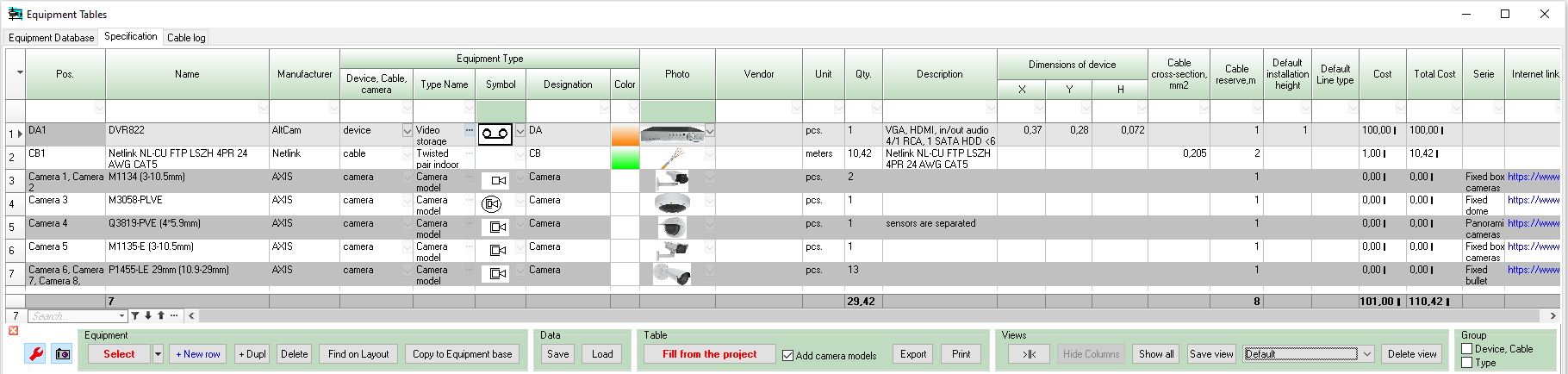
The equipment database is a local, editable table of models of devices, cables and other items for use in projects. The database contains many parameters common to various equipment. You can use only the parameters needed for the project and hide the rest. The Equipment Database is not included in the project. The table can be edited and expanded.
When adding new equipment to the Equipment Database, to ensure consistent naming of equipment of the same type, the new equipment type, along with its symbol, alphanumeric designation, and color, can be selected from the Equipment Types library.
Devices and cables from the Equipment Database can be placed on the layout or used to replace equipment already placed on the layout. Selected equipment is automatically copied to the Specification. You can manually copy equipment models from the Equipment Database to the Specification and vice versa.
See also: Parameters in the Equipment Database and Specification
|
By setting View you can get any standard form of Specification.
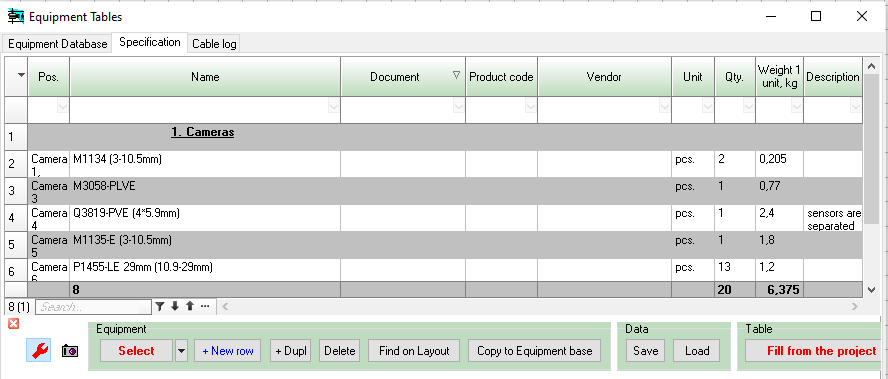
Specification (Bill of Materials) is a table of equipment and material models used in the project. The specification can be filled automatically, supplemented, and edited manually.
The table can also include camera models used in the project and represent a flexible, customizable specification of all project equipment.
Devices and cables from the specification can be placed on the layout or used to replace equipment already placed on the plan. Equipment models can be manually copied from the Equipment Database to the Specification and vice versa. The specification can include equipment and material cost calculation and labor costs, representing an estimate. The specification view can be quickly switched.
A line in the specification will be considered a section or subsection heading, meaning the Name field will be filled in bold and underlined if the Units field is empty.
The specification can be included in the PDF report.
See also: Parameters in the Equipment Database and Specification
|
By setting View you can get any standard form of Cable Log.
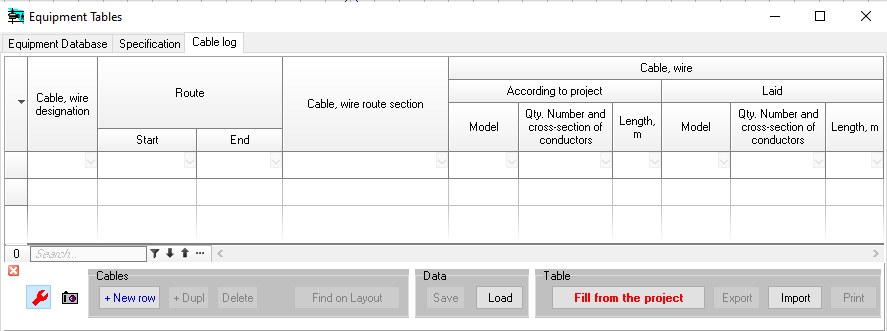
The Cable Log is a table of all cable sections in the project, indicating the cable type, length, reserves and lists of cameras and devices connected to each section. It may include calculation of voltage drop along the section. In case of multiple consumers connected to a cable section at different distances from the source, it may include calculation of voltage at each consumer. The Cable Log can be filled automatically, supplemented, and edited manually.
The Cable Log can be included in the PDF report.
See also: Parameters in the Cable Log
|
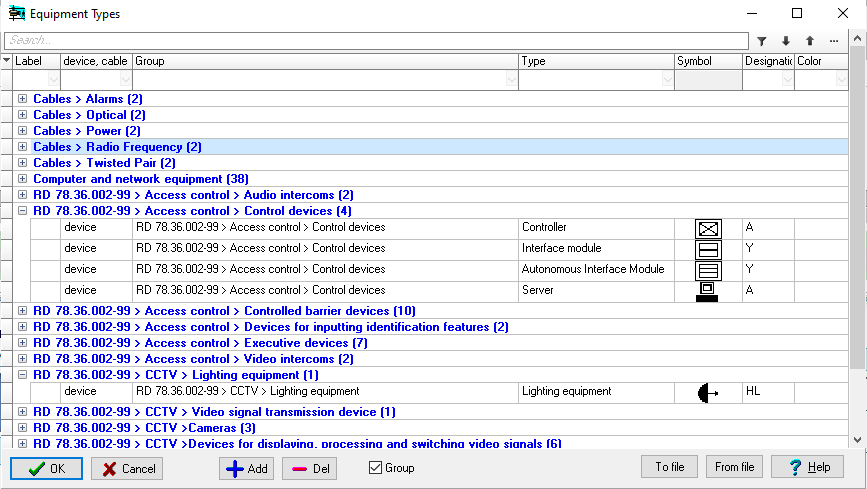
The Equipment Types library opens when attempting to add a new equipment type to the Equipment Database or Specification. You can access the library using the Types button on the Equipment Database toolbar. The Equipment Types library includes the types of equipment for use in projects, without identifying specific models. Each type has an associated symbol, alphanumeric designation, and color for display on the layout. This library is designed to ensure standardization and consistency of symbols and alphanumeric designations for equipment of the same type.
By default, the library is filled by equipment types according to RD 78.36.002-99 "TECHNICAL MEANS OF FACILITY SECURITY SYSTEMS. GRAPHIC SYMBOLS OF SYSTEM ELEMENTS," as well as types of computer network equipment and cables. The table can be expanded and edited. The Equipment Types library is stored on the workbench and is not included in the project. The library can be saved to and loaded from a file.
|
Devices and cables from the Equipment Database and Specification can be selected and placed on the layout; they will be displayed in 2D and 3D.
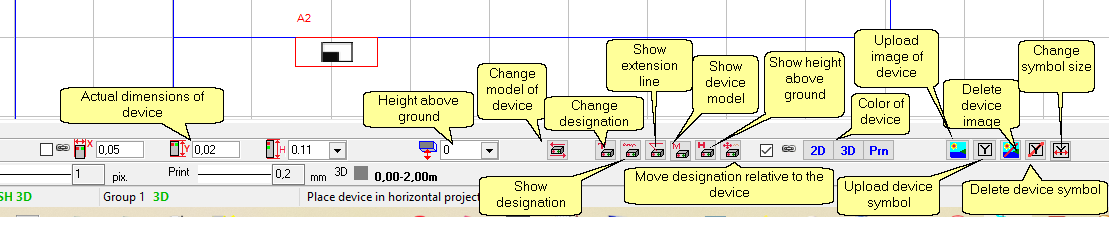
Each equipment model can be assigned a symbol, color, line type, actual device dimensions and image. These parameters can be reassigned for any individual device or cable on the layout using the Current Construction Parameters Panel or the Selection editing panel.
Equipment can be:
| • | Cable. |
| • | Other. |
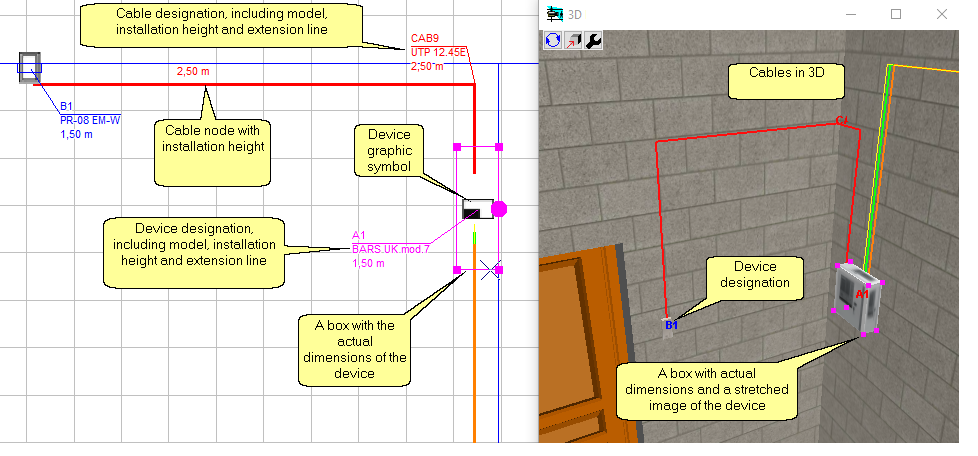
Device is any device that can be placed on layout. In the Graphics window, devices are displayed as a rectangle with actual dimensions and a symbol. In 3D windows, devices are displayed as boxes with actual dimensions and images of the devices stretched over them. If an image is not assigned to a device, device symbol is drawn instead of image. An alphanumeric designation is displayed over the boxes, which is visible through other constructions.
To place a device on the layout, open the Equipment Tables window by clicking the
To select equipment not already in the project, go to the Equipment Database tab. To select equipment already in the project, go to the Specification tab. Select the desired equipment model in the table and click the Select button on the Equipment Tables toolbar. Then, sequentially mark the locations of the device of that model on the layout in the horizontal projection.
Placing devices is done with two clicks: The first click marks the device's corner point, and the second click marks the orientation of the device body relative to the marked point.
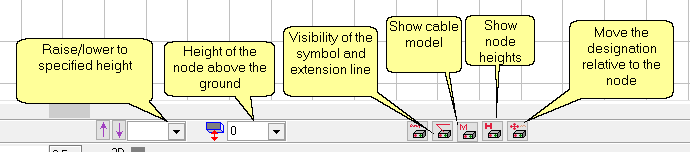
You can pre-edit the parameters of the equipment being placed on the Current Construction Parameters Panel that appears at the bottom of the Graphic window.
The devices on the layout can be simply copied, like cameras and constructions.
Symbol sizes in the Graphics window can be set to the same or equal dimensions as their original images, or individually for each device using the button
Device designations, installation heights, and model names can be displayed next to devices in any combination, with or without an extension line.
Symbols can be scalable (having actual dimensions on the layout at any zoom level) or non-scalable (having constant dimensions on the screen at any zoom level). You can make symbols and equipment designations scalable or non-scalable, along with the callouts of the Cable Control Point tool, using the Scalable checkbox in the Options box.
|
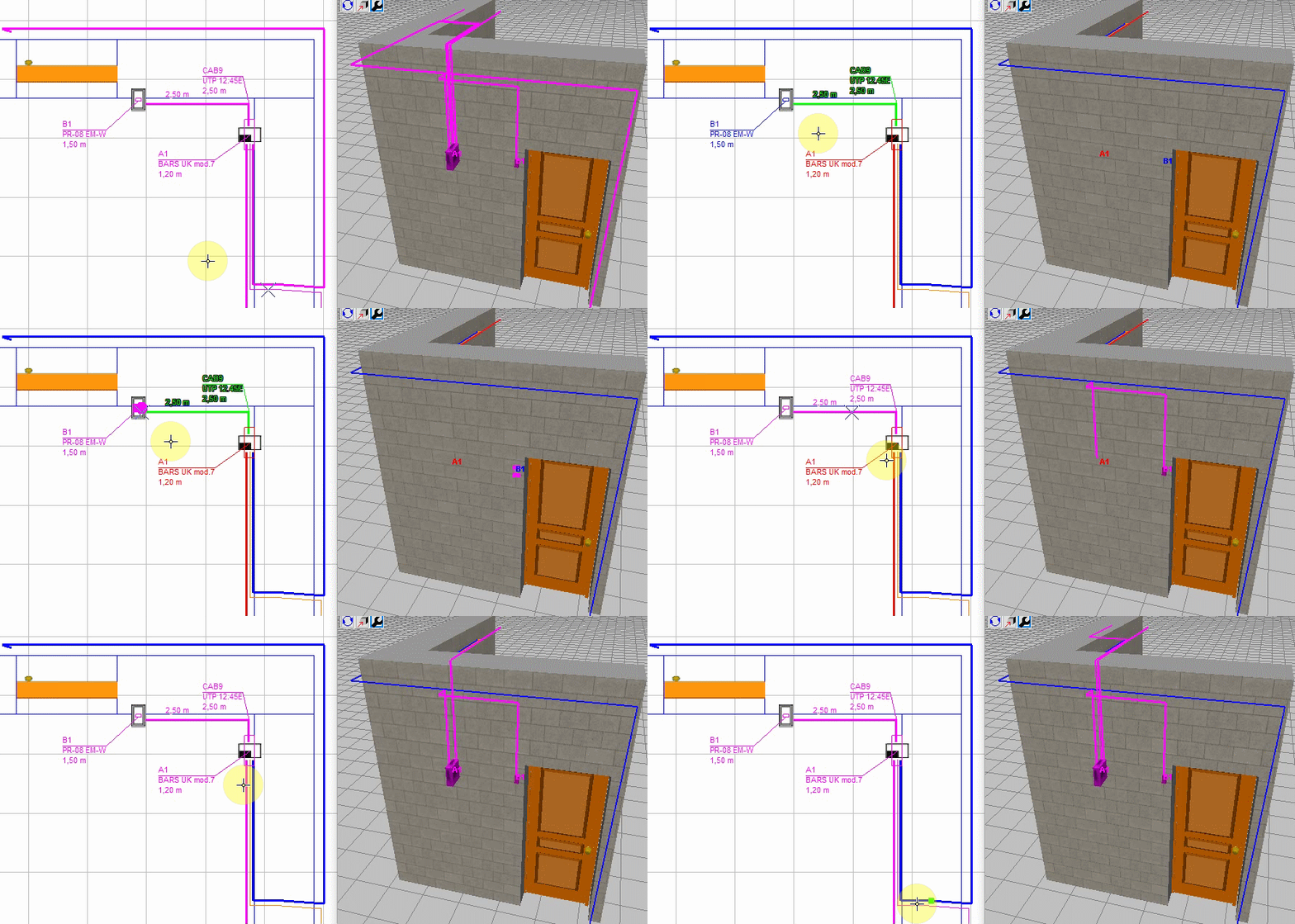
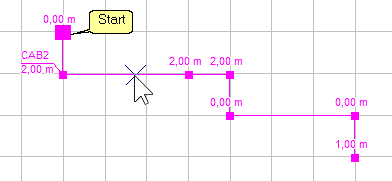
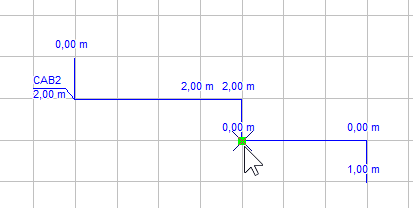
A cable can be placed on the layout and connect devices and cameras. A cable consists of a chain of nodes connected by segments.
To route cables, open the Equipment Tables window by clicking the
To select equipment not already in the project, go to the Equipment Database tab. To select equipment already in the project, go to the Specification tab. Select the desired equipment model in the table and click the Select button on the Equipment Tables toolbar. Then, mark the cable nodes one by one in the horizontal projection on the layout.
Existing cables can be simply copied, just like cameras and constructions.
You can pre-edit the parameters of the equipment to be placed in the Current Construction Parameters Panel that appears at the bottom of the Graphical Window.
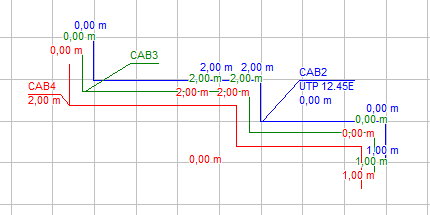
Cable routing is three-dimensional. Each cable node has two coordinates on the layout and height above ground.
Cable nodes can be selected and edited individually, as selected groups of nodes, as entire cables, or as groups of selected cables. This horizontal, vertical, and inclined cable sections are set accurately, while maintaining the ease of routing and editing traditionally horizontal cables.
The cable designation, node height, and cable model name, in any combination, can be displayed next to defined cable nodes.
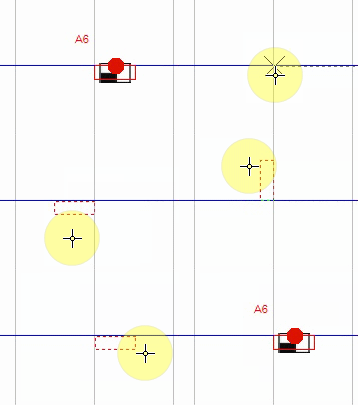
Multiple devices and cameras in different locations can be connected to a single cable. A cable is considered connected to a device if its node is within the device's 3D box. A cable is considered connected to a camera if its node is no more than 2 cm from the camera lens, in three coordinates. Snaps make connections simple.
Cable routing can be monitored in 3D. Selected cables and devices are visible through other constructions, allowing for a complete view of complex cable routing across multiple rooms and floors in 3D windows.
Among the device model parameters, you can set a cable reserve for connection to this device model. This reserve will be added to the calculated cable length each time you connect to devices of that model.
The program accurately calculates all cable sections in 3D, takes into account reserves for connections to cameras and equipment, additional reserve for installation, and generates the Cable Log. The required cable length for each model calculated from the Cable Log is entered into the Specification.
The Cable Control box tool automatically detects and displays a list of cables passing through a virtual 3D box, along with a extension line and height. This tool is convenient for displaying lists of cables laid in bundles.
|
Equipment, materials, and work whose location will not be defined on the layout. Other equipment may only be included in the Equipment Database and Specification and will be included in the total cost calculation.
|
See next: Table Interface, Tool bar, Pop-up menu, Equipment parameters.
See also: Import a camera, equipment or cable model using AI, Device and Cable Modeling, Specification and Cable Log, Adding an Equipment model to the Equipment Database, PDF report>Equipment, Cable control box, Numbering Equipment