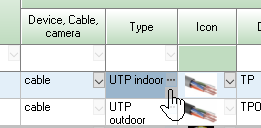
2.To change type of equipment in the Equipment Database or Specification open the Equipment Types library by clicking the dotted icon in the corner of the Type field in the Equipment Database or Specification.
Select the new equipment type from the table and click Assign.
This will assign library values to the following parameters of the new equipment model:
1. Open the Equipment Types library in any of the following ways:
•
Using the Types button on the Equipment Database toolbar.
•
Clicking the dotted icon in the corner of the Type field in the Equipment Database or Specification.
•
When adding a new equipment model, click the +New button in the Equipment Database.
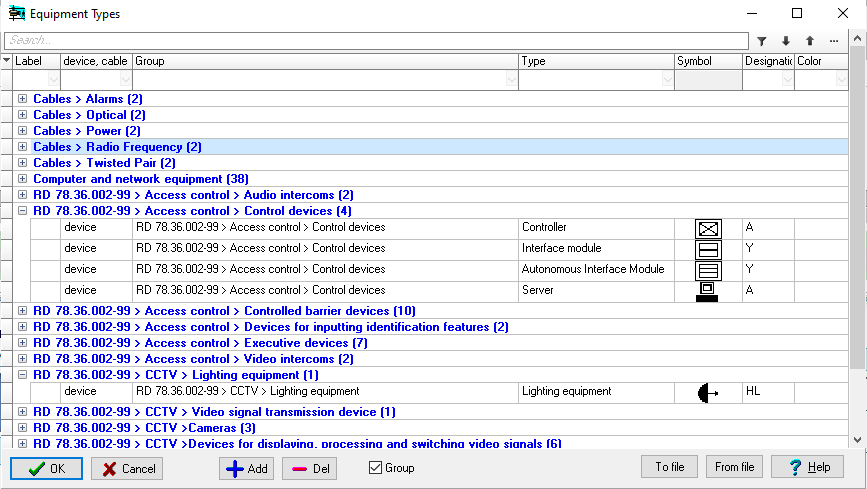
2. Click the Add button on the library toolbar. A new row will appear in the table.
3. Set the parameters for the new equipment type. Select a value from the list in the Device, Cable field:
•
A device is any device that can be placed on a layout. In the Graphics window, devices are displayed as a rectangle with actual dimensions and a symbol. In 3D windows, devices are displayed as boxes with actual dimensions and device photo overlaid on them. If a photo is not assigned to a device, the device symbol is overlaid instead.
•
A cable can be placed on the layout and connect devices and cameras.
•
Other - equipment, materials, and labor. The placement of other items on the layout is not defined. Other equipment may only be listed in the Equipment Database and Specification and will be included in the total cost calculation.
4. The Group field can contain any name for a type group. Dividing types into groups makes it easier to find them in the table.
5. The Type Name field can contain any type name.
6.Symbol - an icon that will be used to represent equipment of this type on the layout. To load symbol, click the field and then click the arrow that appears in the upper right corner.
The size of the uploaded graphic file may be limited.
7.Designation - alphanumeric designation of equipment of this type.
8.Color - the color for this type of equipment. White indicates no color is assigned..
9. After filling in the new type, click Assign or OK.
The library includes names of types of equipment for use in projects, without identifying specific models.
Each type has an associated graphic symbol, alphanumeric designation, and color for display on the layout.
The library is designed to ensure standardization and consistency of symbols and alphanumeric designations for equipment of the same type.
By default, the library is filled with equipment types according to RD 78.36.002-99 "TECHNICAL MEANS OF FACILITY SECURITY SYSTEMS. GRAPHIC SYMBOLS OF SYSTEM ELEMENTS," as well as types of computer network equipment and cables.
The Equipment Types library is stored on the workplace and is not included in the project. The library can be saved to and loaded from a file.
Saving the table to a file and loading it from the file
The table can be supplemented and edited.
You can skip the Equipment Types library and enter equipment type parameters directly in the Equipment Database or Specification. You can also change these parameters after assigning an equipment type in the Equipment Database and Specification, and for equipment already placed on the layout.