Feedback on: VideoCAD - Equipment Tables Equipment parameters Parameters in Equipment Database and Specification List of parametersEQ_TableslParamList_baseInterface > Equipment Tables > Equipment parameters > Parameters in Equipment Database and Specification /Dear CCTVCAD Software,
Equipment Tables
Equipment parameters
Parameters in Equipment Database and Specification
Parameters highlightedin red are used when modeling equipment in VideoCAD; the remaining parameters exist only for comparison, creation of standard forms of specification and reference purposes.
The Label field allows you to mark equipment models with custom labels (e.g., OK, BAD, Order, Warehouse, Used, Obsolete, etc.). You can then filter, sort, group rows by labels, as well as by any other table fields and their combinations.
Equipment model name. May be shown on the layout below the equipment designation.
The line in the specification will be considered a section or subsection heading, meaning the Name field will be filled in bold underlined font if the Unit field is empty.
Parameters in the Equipment Type section can be assigned simultaneously from the Equipment Types library. To open the library, click the dotted button in the Type Name field.
Equipment tables are not designed for use with cameras. For cameras, there are dedicated windows: Table of Camera Models and Table of Cameras, which present camera parameters in more detail. However, camera models used in the project can be automatically added to the Specification and taken into account when completing the Cable Log.
Device - any device that can be placed on the layout.
Cable - can be placed on the layout and connect devices and cameras. Multiple devices and cameras in different locations can be connected to a single cable.
Other - equipment and materials whose placement is not specified on the layout.
In the Specification, this field may contain a camera if the row describes a camera model added during autocomplete with the Add camera models checkbox checked.
Further processing of the row depends on the value in this field.
The name of the equipment type, without identifying specific models. For example: Power Supply, Hub, Router, Monitor, Power Cable, Twisted Pair Cable, etc.
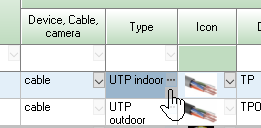
Clicking the dotted button in the corner of this field opens the Equipment Types library and selects the appropriate type. Selecting a type from the library will assign values to the Device, Cable, Camera, Symbol, Designation, Unit and Color fields.
A symbol (icon) representing the equipment model on the 2D layout. In 3D, the symbol is used instead of photo if the photo is not assigned to the device.
The cell contains a drop-down menu for saving, loading, copying, and pasting graphic files.
An alphanumeric designation used to identify equipment of this model on layouts and tables. Typically, it consists of one to three letters, automatically followed by a number.
Typically, the designation and symbol are linked to the equipment type. The designation can be selected with the type from the Equipment Types library.
Designations of different pieces of equipment on the layout must be unique. VideoCAD monitors this uniqueness and adds numbers to the designation if necessary.
The default color used to draw equipment of this model. If a color other than white is assigned, the color will be assigned to the Color in 2D, 3D Color, and Print Color when placing the equipment.
Equipment photo. The cell contains a drop-down menu for saving, loading, copying, and pasting photos.
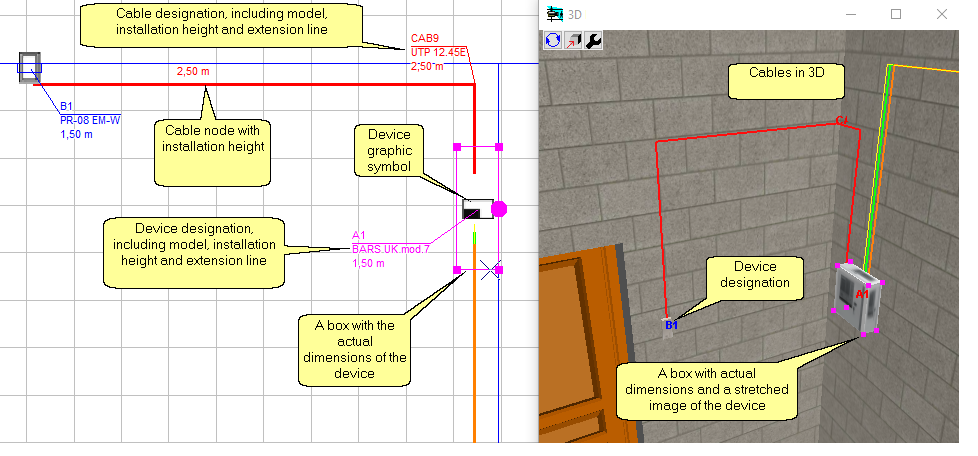
In the 3D World and 3D Video windows, devices are displayed as boxes of specified dimensions with stretched equipment photos. If a photo is not assigned to a device, the device symbol is stretched instead.
Clicking the cell opens the Equipment Model Card box for a more detailed view of the photos. The box dynamically displays the photo from selected table row and the main parameters of the equipment model.
In the 3D World and 3D Video windows, devices are displayed as boxes with preset dimensions and stretched photos of the equipment.
For a cable node to be considered connected to a device, it must be located inside the device's box, taking into account the dimensions and height above ground of the device's 3D model.
For devices, this is a device model parameter: When calculating cable lengths on layout in the Cable Log, the connection reserves for all devices connected to the cable will be added to the resulting sum of the lengths. The total reserve is displayed in a separate column, +-Reserve, in the Cable Log.
For cables, this is result of calculating reserve for all cables of given model: That is, this is the sum of the values in the +-Reserve field of the Cable Log of all cable sections of given model.
The default installation height for this model of equipment. When placed on layout, the installation height is copied to the Device Height Above Ground combo box.
For a cable node to be considered connected to a device, it must be located inside the device box, taking into account the dimensions and height above ground of the device's 3D model. .
The default line type used to draw a device or cable. If a colorother than white is assigned, lines will be drawn in the assigned color, and the Thickness and Style will be taken from the line type.
The Line Type for equipment on the plan can be changed using the Line Type Panel.
The name of unit of equipment of this model (pieces, meters, kilograms, etc.).
Automatically filled when assigning the equipment type. Can be edited manually.
The line in the specification will be considered a section or subsection heading, meaning the Name field will be filled in bold underlined font if the Unit field is empty.
For consumers, this is the current consumed by the equipment model. If the equipment is a power source, this is the source's output current. The current is calculated within VideoCAD based on the supply voltage and power consumption.
The current in wire is calculated by summing the values in this field of all equipment connected to the cable, except for the device connected to the start node of the cable.
The current consumed by a device connected to the start of the cable is not taken into account, as a power source is typically connected to the start, and if it is a consumer, its current does not flow through the cable.
Only the current of consumers is summed; the current of power sources is not taken into account.
When calculating the voltage along the cable, the current consumed by each consumer and its connection point to the cable are taken into account.
A link to the manufacturer's or supplier's website with a detailed description of the equipment model. You can open the link from the Equipment Tables context menu, the Equipment Model Card window, or by clicking this field.
This field stores information about whether the equipment in this row was placed or found on the layout, and therefore associated with the project. Or whether the row was manually added (copied) to the Specification or Cable Log. Manually added rows are not synchronized with the project.
This is a service column; by default, this column is hidden.