|
|


Current construction parameter panel Devices |

|

|

|

|

|
||
|
Current construction parameter panel Devices |
|
|
|
|

|

|
Current construction parameter panel
Devices
|
|
|
Current construction parameter panel Devices |
|
|
|
|
|
||
|
Current construction parameter panel Devices |
|
|
|
|
|
|
|
|
||
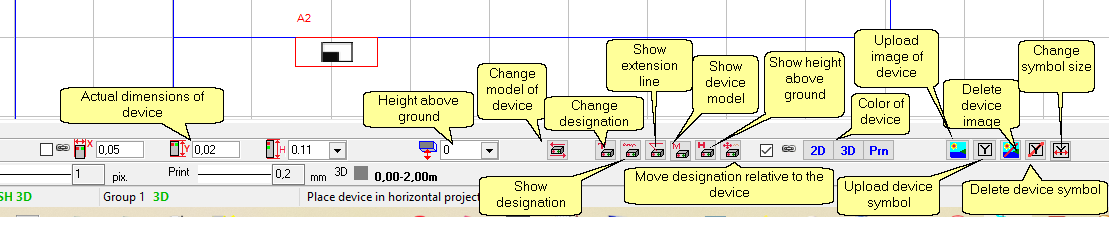
In the boxes on the left, invisible in the picture, you can see the coordinates of the Device on the layout.
Using the combo boxes  you can resize the Device separately on axes.
To do this, enter new values into X, Y, H boxes during Device editing. If the  box is marked, change of any size leads to proportional change of other sizes, thus proportions are not broken.
Device height above the ground is displayed and can be changed in the  box.
box.
In multi-level projects, the height are calculated relative to base height of a layer to which the Device belongs.
The  button allows you to replace the device model on the layout with any other from the Equipment Database or Specification. Clicking this button will open the Equipment Tables.
To select equipment not present in the project, go to the Equipment Database tab. To select equipment already in the project, go to the Specification tab.
Select the equipment model to replace and click the Select button on the Equipment Tables toolbar.
Before the replacement, a dialog box will appear allowing you to select which parameters of the placed equipment should be replaced and which should remain unchanged.
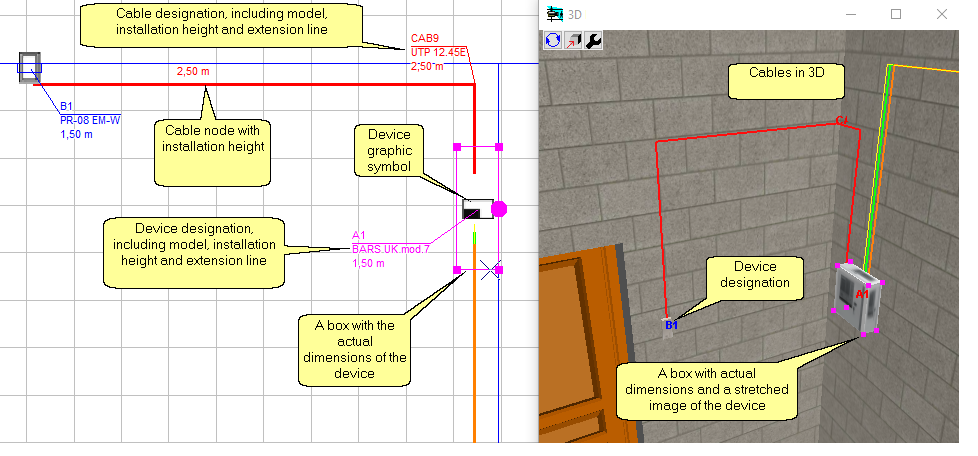
The 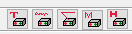 buttons control the appearance of the device designation on the layout.
 edit the designation. When renaming, you will be prompted to keep the numbering.
 show/hide the alphanumeric designation.
 show/hide the extension line.
 show/hide the equipment model name in the designation.
 show/hide the equipment installation height in the designation.
The button  allows you to move the designation relative to the device on the layout. To move the designation, click this button and click to set a new location for the designation
See also: Scalable
The color setting buttons on the layout, in 3D and when printing work as usual.
The 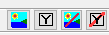 buttons allow you to assign an image and symbol to the device.
| • | The image is placed over the box with device's dimensions in the 3D windows and displayed in the Equipment Model Card. |
| • | The symbol is displayed in the center of the device on the 2D layout. |
The  button allows you to change the size of the device symbol. In the pop-up combo box, you can specify a precise size in pixels or choose:
| • | default - ;the symbol size set in the Options box; |
| • | =picture - the symbol size is equal to the size of its image, in pixels. |
The offset of the designation relative to the equipment and the device symbols can be scalable (having actual dimensions on the layout at any zoom level) or non-scalable (having constant dimensions on the screen at any zoom level). Scalable and non-scalable offsets are independent and are stored separately.
You can make the equipment symbol and offsets scalable or non-scalable, along with the callouts of the Cable control box, using the Scalable checkbox in the Options box.
See also: Device symbol>Scalable, Font>Scalable, Camera Icon>Scalable, Illuminator icon>Scalable
During initial placement, the device dimensions, height above ground, designation, device model, color, image and symbol are taken from the Equipment database or Specification.
The Transparency checkbox controls the transparency of images and symbols of Devices  .
.
On Device image pixels become completely transparent, which color coincides with color of the left- bottom pixel. Other pixels remain opaque.
If its raster image is *.png, then transparent pixels of png file will be transparent in VideoCAD ( *.png format supports transparency).