Device and Cable Modeling, Specification and Cable Log
Feedback on: VideoCAD - Device and Cable Modeling, Specification and Cable LogPrimEQExamples of work with VideoCAD > Device and Cable Modeling, Specification and Cable Log /Dear CCTVCAD Software,
Device and Cable Modeling, Specification and Cable Log
Using VideoCAD, you can place not only cameras but also any devices on the floor plan and in 3D. Devices and cameras can be connected with cables.
Problem
It is necessary to place a controller and camera connected by cable, obtain the Specification and Cable Log.
Order of Work
Controller placement
1. Open the Equipment Tables by clicking the Equipment Tables button on the Graphic Window Toolbar.
2. To select equipment not included in the project, go to the Equipment Database tab. To select equipment already included in the project, go to the Specification tab.
Equipment already on the layout can be simply copied, like cameras and constructions.
3. Select the desired model of device in the table and click the Select button on the Equipment Tables toolbar.
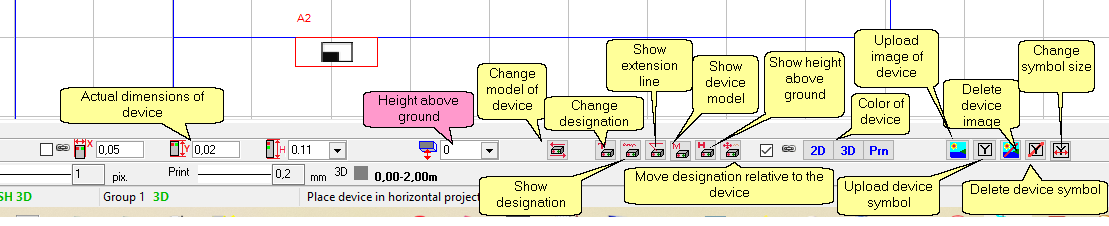
4. Check and, if necessary, adjust the device's Height above ground in the Current Construction Parameters Panel. You can also change other parameters of the device being placed.
5. Click to mark the location of the device in the horizontal projection in the Graphics window.
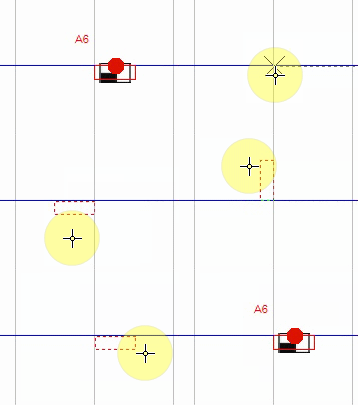
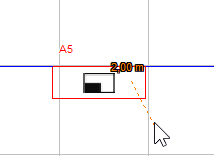
Placing devices is done with two clicks: The first click marks the device's corner point, and the second click marks the orientation of the device body relative to the marked point.
Camera placement
1. Place the camera in the usual manner as described in the examples of placing cameras of different types.
2.To add a camera model to the Specification and take into account the cable reserve for connecting to the camera, select the camera model in the Active camera model combo box on the Graphics window toolbar.
Cameras are not added to the Specification, but rather the camera models used in the project. If a camera doesn't have an assigned model, it won't be reflected in the Specification. However, such a camera will still be listed in the Table of Cameras.
Check and, if necessary, adjust the Camera Installation Height in the Camera Geometry box.
Cable placement
1. Open the Equipment Tables by clicking the Equipment Tables button on the Graphic Window Toolbar.
2. To select equipment not included in the project, go to the Equipment Database tab. To select equipment already included in the project, go to the Specification tab.
Equipment already on the layout can be simply copied, like cameras and constructions.
To connect the cable to a device, a cable node must fall inside the 3D model of the device. For this, the height of the first cable node can be within the range from the height of the device above the ground to the top of the device (height above the ground + the device's own height).
5. Click to mark the location of the first cable node inside the placed device in the horizontal projection of the Graphics window.
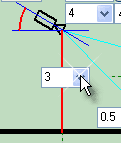
6. Mark cable nodes by clicking on the layout. Before clicking, check and adjust the Height above Ground of each node in the Current Construction Parameters Panel.
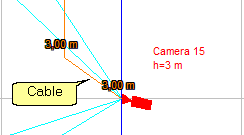
7. Mark the last cable node at the camera lens point, setting the node height to the camera's height above the ground. To finish placing the cable, click Esc
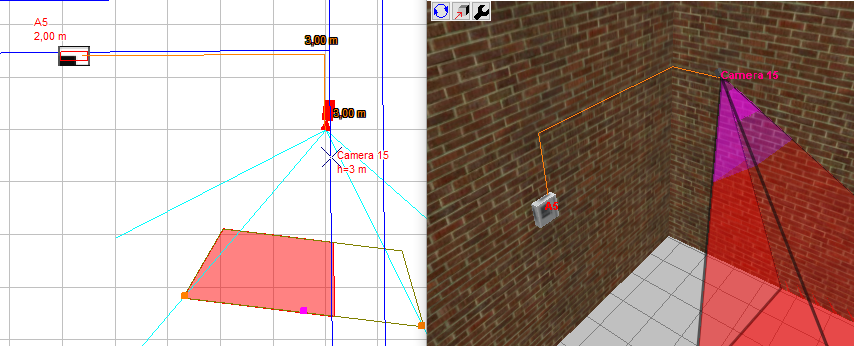
In the Graphics window and in the 3D World window you will get the following result.
Another method for routing cables is possible: Initially, cables are drawn on the layout in the usual manner, without regard to node heights and vertical sections. Then, nodes are assigned heights, and additional nodes are added to form vertical sections.
Make sure the new cable is listed in the Cable Log. Our cable is shown in the Cable Designation field, our device is shown in the Route>Start field, and the camera is shown in the Route>End field. The Length on the layout shows the calculated cable length in 3D, taking into account vertical segments. The +- Reserve column shows the sum of the Reserves for connecting our device and camera, and the Length field shows the cable length including the reserve.
If power parameters are entered in the Device and Camera parameters, and the cable cross-section area is specified in the cable parameters, the Cable Log will calculate the voltage drop along the cable, including the voltage at each consumer. In this simple example, there is only one consumer — the camera.
9. In the Equipment Tables window switch to the Specification tab.