Illumination |

|

|

|

|

|
||
|
Illumination |
|
|
|

|

|

|
Illumination
|
|
||
Graphics window Main menu View Options Illumination |
|
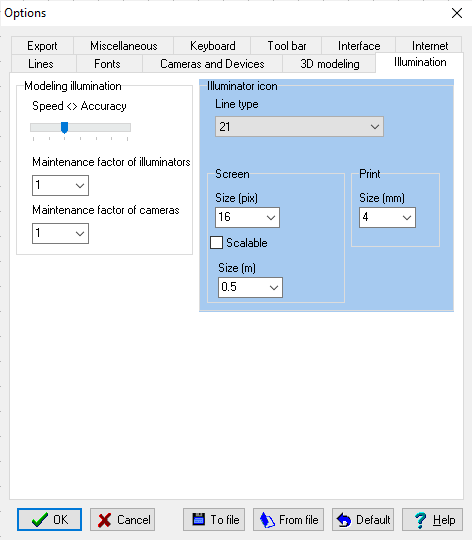
Parameters on this panel are considered in 3D image modeling only if the illumination modeling is switched on.
Using Speed <> Accuracy slider you can choose a compromise solution between accuracy of modeling light bounds and performance of illumination modeling.
Maintenance factor of illuminators
- allows for supply voltage and lamp parameters variation, lamp aging, luminaire dirt depreciation.
Suggested Maintenance factors, according to CIE 97:
0.8 - very clean environment, maintenance cycle 1 year;
0.67 - clean environment, maintenance cycle 3 years;
0.57 - normal environment pollution load, maintenance cycle 3 years;
0.5 - dirty environment, maintenance cycle 3 years;
If the supply voltage is not stable or below normal then it is necessary to decrease the Maintenance factor proportionally to possible voltage slump.
- allows for lens contamination, dirt, camera degradation and parameter variation in the lifetime.
Suggested Maintenance factors:
0.7 - very clean environment, maintenance cycle 1 year;
0.6 - clean environment, maintenance cycle 3 years;
0.5 - normal environment pollution load, maintenance cycle 3 years;
0.4 - dirty environment, maintenance cycle 3 years;
Size and line type for icons of Illuminators
The icon size is specified separately when displaying on the screen and when printing.
You can set any line type for a illuminator during placing the illuminator.
The illuminator will be drawn by default line type, if another line type has not been specified during creation and placing.
Later on, you can change line type using Change line type tool.
Scalable
If Scalable box is checked, then illuminators' icons are scaled with the other constructions. Size of icons is specified in meters (feet) in the Size box below.
If Scalable box is not checked, then cameras' (illuminators') icons are not scaled. Size of icons is specified separately: on the screen in pixel - in the Size (pix) box, for printing in millimeters, - in the Size (mm) box.
See also: Device symbols>Scalable, Fonts>Scalable, Camera Icon>Scalable, Export>DXF..>Sizes (unit)>Camera Icon, Export>BMP..>Scale factor>Camera Icon
Size
Size of scalable icons in meter (foot), when the Scalable box is checked.