Territories Table Interface |

|

|

|

|

|
||
|
Territories Table Interface |
|
|
|

|

|

|
Territories
Table Interface
|
Territories Table Interface |
|
|
|
|
|
||
|
Territories Table Interface |
|
|
|
|
|
|
|
|
||
|
|
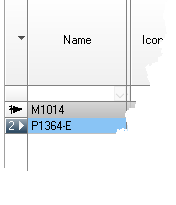
To select row bring the cursor to the left end of the row. The cursor should become a right arrow To select several arbitrary rows, hold Ctrl; to select a range of rows, hold Shift.
|
To select a column bring the cursor to the border between header and data of the column. The cursor should become down arrow To select several columns hold Ctrl. To select range of columns hold Shift or move the cursor, holding the left mouse button.
|
Bring the cursor to a corner cell of a fragment, press the left mouse button and then move the cursor, holding the left mouse button pressed. After selecting the fragment release the left mouse button.
|
Only the Editable Parameters on the left side of the table can be edited. The remaining Territory parameters are filled automatically.
To select a cell, click on it. To edit, click on the selected cell once again. It is possible to move around the cells using keys with arrows. For editing press Enter.
Depending on type of parameter, the cells may allow the selection from a list, enter into a simple or complex drop-down form.
After editing the parameters, you need to Calculate the territory.
|
Bring the cursor to border of a column on the header. The cursor will become a double arrow
|
Bring the cursor to border of a row on the left edge of the table. The cursor will become a double arrow
You can change height only for all rows simultaneously.
|
To move a column, place the cursor on the column header. Press the left mouse button and move the cursor. After moving column, release mouse button.
To move a row, place the cursor over the leftmost column with the row number. The cursor will look like an arrow to the right.
Select the row by clicking. Then press the left mouse button. A red line appears above the row. Move the cursor along the left column with row numbers. After moving the red line to the target of moving the row, release the mouse button.
|
You can adjust visibility of columns, save and restore table structures as Views.
To show/hide any particular column:
You can also hide columns by selecting them and then choosing Hide selected columns in the context menu. See also: [****]Table tool bar>Views.
|
You can adjust visibility of columns, save and restore table structures as Views.
See more: [****]Table tool bar>Views.. |
To sort by the parameter value in the column, just click on the column header. Reclick changes sort order to the reverse one.
To sort by multiple columns, hold Ctrl while clicking on headings.
|
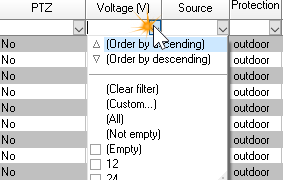
Click on the arrow in the combo box at the column top (between parameters values and header) and choose parameter value from the list.
In this combo box you can specify following filters:
You can set filters in multiple columns at the same time.
|
In the lower left corner of the table, above the toolbar the search bar is located. To search the entire table of cells containing specific values, enter this value in the search bar. Already in the process of typing the found matches in the table will be highlighted in yellow.
The number of matches found to the right of the search string is displayed. More to the right there are the buttons for displaying rows with search results, navigating through search results, and calling the search options menu.
See also: Find (Ctrl+F), Find on Layout
|
See also: Territories, Tool bar, Pop-up menu, Parameters of Territory.
 . Then click on this place. The selected row will be highlighted and marked by the sign
  .
. . Click on this border.
 . Press the left mouse button and move the cursor. After getting the necessary width release the mouse button.
 . Press the left mouse button and move the cursor. After getting the necessary height release the mouse button.