VideoCAD

USB dongle

 Operating instructions for USB dongles

Hide Navigation Pane

USB dongle

 Operating instructions for USB dongles

Previous topic This is the last topic No directory for this topic Expand/collapse all hidden text  

USB dongle

 Operating instructions for USB dongles

Previous topic This is the last topic Topic directory requires JavaScript JavaScript is required for expanding text JavaScript is required for the print function Mail us feedback on this topic!  


Operating Instructions for USB Dongles


USB dongle installation procedure

Dongle Operating and Storage Instructions

Installing USB dongle Driver

Using USB dongle without driver

Possible problems

Warranty


       USB dongle installation procedure


Important information

•Connecting and disconnecting USB dongle can be done both with the computer on and off.
•Attention! Disconnecting the USB dongle while the program is running can cause the computer to freeze and damage the working project.


1. Install VideoCAD according to the information in the ReadMe.txt file. At the end of the installation, the USB dongle driver will be installed automatically.


2. If necessary, restart your computer..


3. Connect the USB dongle to a free USB port.


The dongle should appear under the name "Senselock SenseIV EL v2.x" in the list of installed Windows devices, in the Smart card readers folder.


4. When you first start, enter the Name and Registration Code sent to you with the USB dongle.


5. Make sure VideoCAD is functioning properly.


       Dongle Operating and Storage Instructions


1. Protect the dongle from physical damage (fall, toss, vibration, etc.), exposure to high and low temperatures, aggressive environments, high voltage; all these may cause damage to the dongle.

2. Do not press too hard when connecting the dongle to the computer.

3. Do not expose the dongle (especially its connectors) to dust, dirt, damp, etc. In case dirt gets into the dongle connectors arrange for their cleaning. Use a dry cloth to clean the case and connectors. Never use organic solvents.

4. Do not disassemble the dongle. This may cause damage of the dongle's case, printed wiring elements, and consequently lead to unstable functioning or failure of the  hardware.

5. In case of failure or improper functioning of the dongle, contact us.


Note: For stable functioning of the dongle it is required to use dongle driver.

A set of drivers for various operating systems is supplied together with the VideoCAD.

The driver is installed automatically during VideoCAD installation.

To install or reinstall driver manually choose All programs>VideoCAD>Dongle driver. Then choose Install driver or Uninstall driver.


       Installing USB dongle Driver


A set of drivers for various operating systems is included in the VideoCAD distribution.


The driver is installed automatically at the end of the VideoCAD installation.


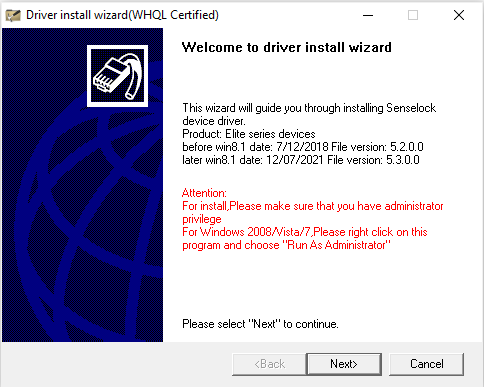
To reinstall the driver, use the InstWiz3.exe utility, which you can run by selecting Start > Programs > VideoCADXX > Dongle driver


First, allow the driver installer to make changes.


In the window that opens, click Next.


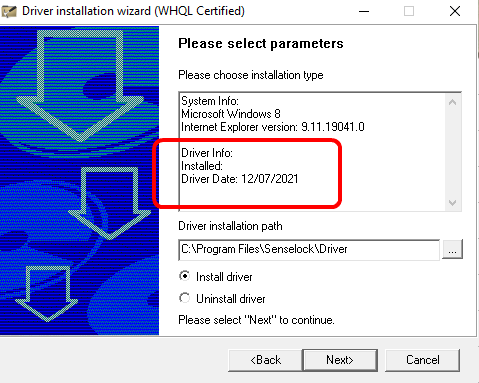
In the window that opens, you can see whether the driver is installed.


Choose Install driver and click Next.

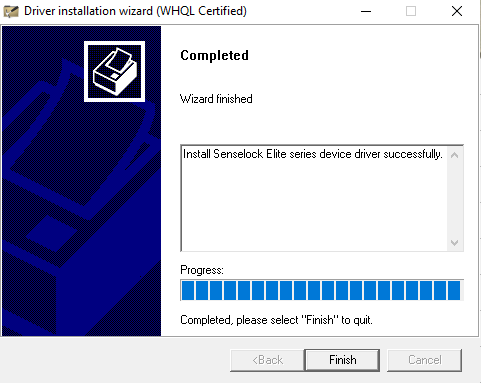
The window should open with a message about successful installation:


Important information

•During driver installation, all applications must be closed to avoid file sharing errors.


•The user working with Windows NT/2000/XP/2003/Vista and next Windows versions must have system administrator rights, otherwise driver installation will not be possible.


       Using USB dongle without driver


If you have a license with Senselock dongle but guard programs on your computer do not allow you to install the driver for the Senselock dongle, try switching the dongle to operating mode without driver. Please download the file with the utility and read the instructions inside.


Utility to switch Senselock USB dongles in OS Windows to operating mode without a driver. The dongles will be recognized by the operating system as standard HID (Human Interface Device) device.


       Possible problems


In case of any problems with USB dongle, first of all, do the following:

1. Stop VideoCAD, if it is running.

2. Disconnect the dongle from the USB port.

3. Reinstall dongle driver.

3.1 Enter under LOCAL administrative account. No Domain account!

3.2 Choose Start>All programs>VideoCADXX>Dongle driver

3.3 In the appeared box choose Install driver.

4. Connect the dongle to the USB port then start VideoCAD.


If these actions don't solve your problem:

•try downloading and installing the latest version of the USB dongle driver.
•try to install VideoCAD, dongle driver and the dongle on other computer according to the instructions.


Possible reason of problems is connected to installed dongle emulators for other software.


       Warranty


The USB dongle is a material carrier of the VideoCAD license. In case of losing the dongle the license is considered lost too.


In case of dongle failure during one year after purchasing and the dongle has no any physical damage marks, the Dongle can be exchanged free-of-charge.

In case of failure later than in one year after purchasing or the Dongle has physical damage marks, the Dongle also can be exchanged, but after payment for the new Dongle and its delivery.

In any case sending the new Dongle can be performed only after receiving the broken one.